meshMonitor
Configuration Guide
MeshMonitor is highly configurable through the config.yaml file. This guide covers all available configuration options and their usage.
Screenshots
The following images provide visual examples of configuration and usage. All screenshots can be found in the ./screenshots/ directory of the repository.
| Screenshot | Description |
|---|---|
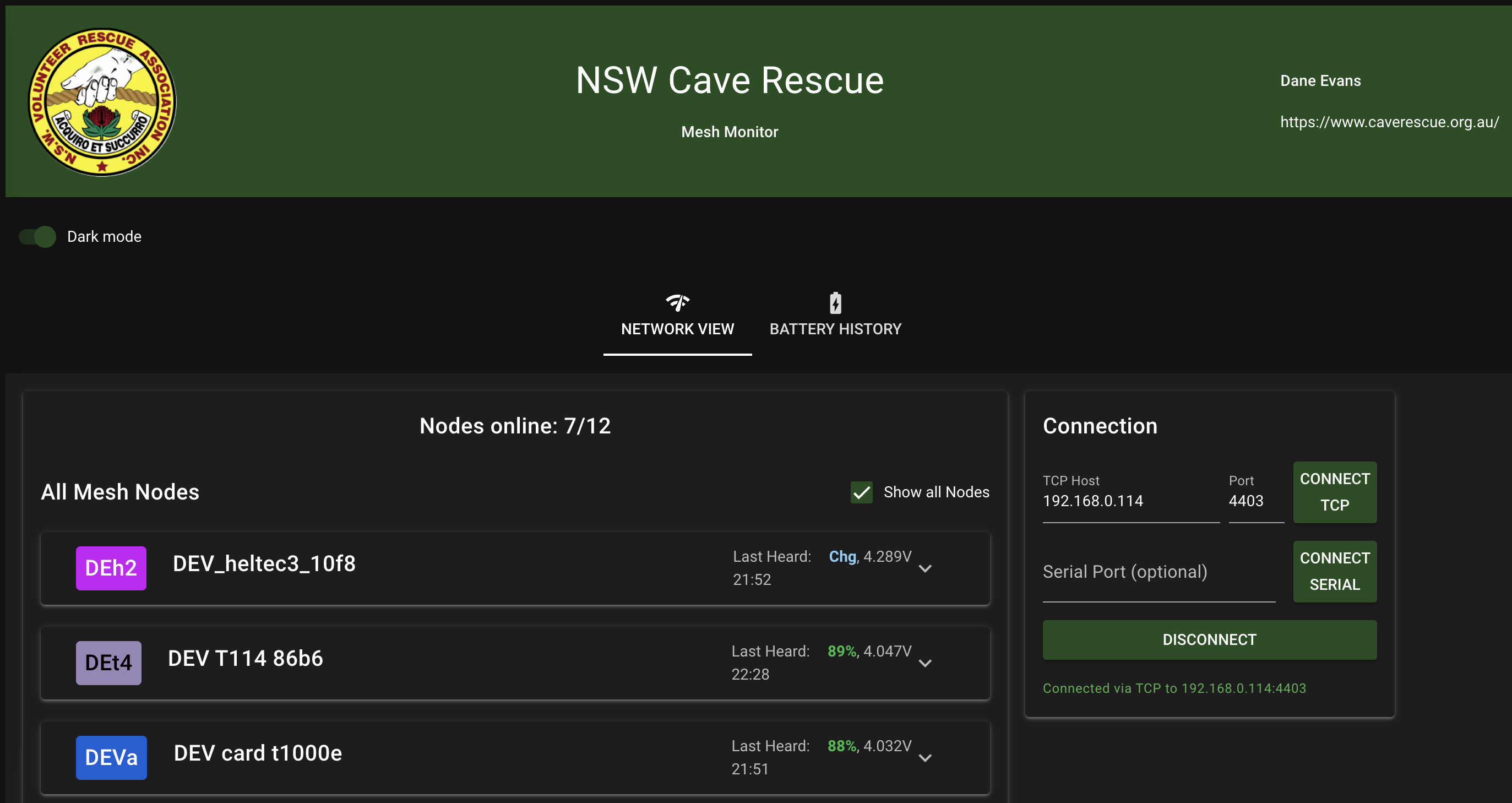 |
Main dashboard |
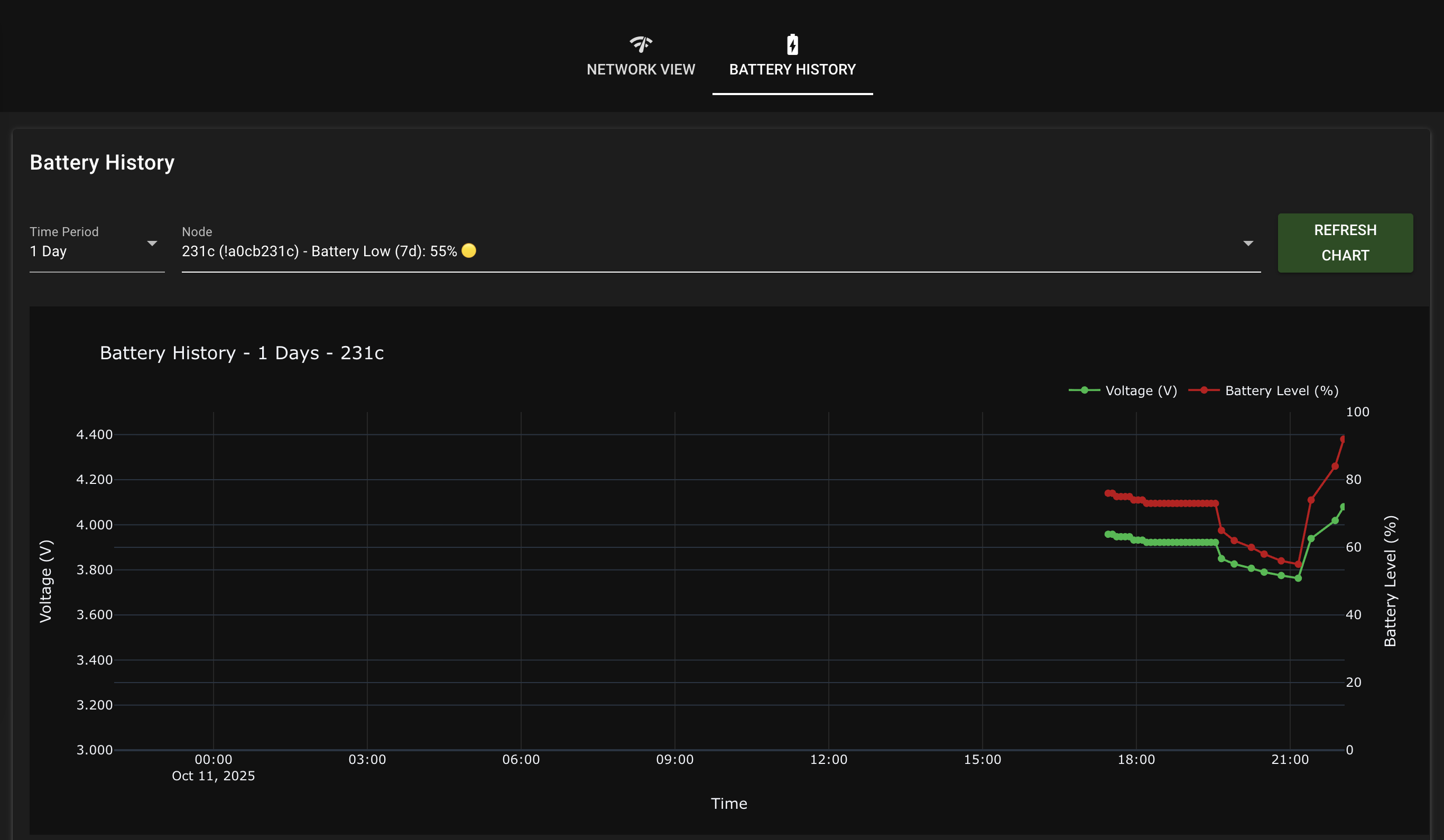 |
Plots |
Configuration File Location
- Default:
config.yamlin the application root directory - Custom: Specify with
--config path/to/your_config.yaml
Configuration Sections
Application Settings
app:
  title: "MeshMonitor"
  subtitle: "Meshtastic Network Monitor"
  page_title: "MeshMonitor - Meshtastic Network Monitor"
  logo_path: "assets/M-PWRD.png"
  contactname: "Site by Dane Evans"
  contactsite: "https://daneevans.github.io/meshMonitor/"
Options:
title: Main application title displayed in the UIsubtitle: Subtitle text below the main titlepage_title: Browser tab titlelogo_path: Path to logo image file (relative to application root)contactname: Contact attribution text displayed in the UIcontactsite: URL for the contact attribution link
Theme Configuration
theme:
  colors:
    primary: "#2c2d3c"      # Main background color
    secondary: "#234d20"    # Secondary background color
    accent: "#c9df8a"       # Accent color for highlights
    positive: "#21BA45"     # Success/positive indicators
    negative: "#C10015"     # Error/negative indicators
  # dark_mode: true         # Uncomment to enable dark mode by default
Color Usage:
primary: Main UI background and primary elementssecondary: Secondary panels and cardsaccent: Highlights, borders, and interactive elementspositive: Battery levels > 60%, successful connectionsnegative: Battery levels < 60%, connection failures
UI Text Customization
ui_text:
  connection:
    title: "Connection"
    disconnected_status: "Disconnected"
    connected_tcp_status: "Connected via TCP to {host}:{port}"
    connected_serial_status: "Connected via Serial on {port}"
    connection_failed_tcp: "TCP connection failed"
    connection_failed_serial: "Serial connection failed"

  nodes:
    title_favorites: "Favourite Nodes"
    title_all: "All Mesh Nodes"
    no_nodes_found: "No nodes found"
    not_connected: "Not connected"
    channel_util_label: "Channel Util"
    hw_label: "HW"
    user_id_label: "User ID"
Customization:
- All user-facing text can be customized
- Use
{variable}syntax for dynamic content (e.g.,{host},{port}) - Supports multiple languages by creating different config files
Connection Settings
connection:
  default_tcp_host: "192.168.0.135"
  default_tcp_port: 4403
Options:
default_tcp_host: Default IP address for TCP connectionsdefault_tcp_port: Default port for TCP connections
Node Activity Settings
nodes:
  active_threshold_hours: 3
Options:
active_threshold_hours: Hours since last communication to consider a node “active”
Auto Response / Tapback (Notifications)
notifications:
  enable_auto_react: false
  auto_emoji: "✅"
Options:
enable_auto_react: If true, send an automatic tapback emoji reaction to received messages on non-primary channelsauto_emoji: Emoji to use for the tapback (e.g., “🤖”, “✅”, “👍”)
Auto Message (Scheduled Messages)
automessage:
  enabled: false
  messages:
    - interval: 15    # minutes
      channel: 1      # Meshtastic channel
      msg: "Hello mesh"
Options:
enabled: Enable/disable scheduled messagesmessages: Array of message objectsinterval: Send interval in minutes (must be > 0)channel: Meshtastic channel index to send on (0 = Primary)msg: Message text
Configuration Examples
Dark Mode Configuration
theme:
  colors:
    primary: "#1a1a1a"
    secondary: "#2d2d2d"
    accent: "#4a9eff"
    positive: "#4caf50"
    negative: "#f44336"
  dark_mode: true
Custom Branding
app:
  title: "My Mesh Network"
  subtitle: "Custom Network Monitor"
  page_title: "My Mesh - Network Status"
  logo_path: "assets/my-logo.png"

ui_text:
  connection:
    title: "Network Connection"
    connected_tcp_status: "Connected to {host}:{port}"
High-Contrast Theme
theme:
  colors:
    primary: "#000000"
    secondary: "#ffffff"
    accent: "#ffff00"
    positive: "#00ff00"
    negative: "#ff0000"
Runtime Configuration
Command Line Options
# Use custom config file
python main.py --config /path/to/custom_config.yaml

# Override host and port
python main.py --host 0.0.0.0 --port 8081

# Disable browser auto-open
python main.py --no-browser
CLI Configuration
# Custom TCP connection
python -m src.meshviewer.cli --tcp-host 192.168.1.100 --tcp-port 4403

# Serial connection
python -m src.meshviewer.cli --serial-port /dev/ttyUSB0

# Custom refresh interval
python -m src.meshviewer.cli --mode continuous --interval 60
Advanced Configuration
Environment Variables
You can override configuration values using environment variables:
export MESHMONITOR_TCP_HOST="192.168.1.50"
export MESHMONITOR_TCP_PORT="4403"
python main.py
Multiple Configurations
Create different configuration files for different environments:
# Development
python main.py --config config_dev.yaml

# Production
python main.py --config config_prod.yaml

# Testing
python main.py --config config_test.yaml
Configuration Validation
The application validates configuration files on startup. Common validation errors:
- Invalid color format: Use hex colors (e.g.,
#ff0000) - Missing required fields: Ensure all required sections are present
- Invalid file paths: Check that logo and asset paths are correct
- Invalid port numbers: Use valid port numbers (1-65535)
Best Practices
Performance
- Use appropriate refresh intervals for your network size
- Consider using CLI mode for large networks
- Monitor disk space for data logs
Security
- Use trusted networks only
- Consider firewall rules for production deployments
- Regularly update dependencies
Maintenance
- Backup configuration files
- Document custom configurations
- Test configuration changes in development first
Troubleshooting Configuration
Common Issues
Configuration Not Loading
- Check file path and permissions
- Validate YAML syntax
- Ensure all required sections are present
Theme Not Applying
- Verify color format (hex codes)
- Check for typos in color names
- Restart application after changes
Connection Settings Not Working
- Verify IP address and port
- Check network connectivity
- Test with CLI mode first
Configuration Reset
To reset to defaults:
- Delete or rename current
config.yaml - Restart the application
- A new default configuration will be created
Next Steps
- Installation Guide - Complete setup instructions
- CLI Reference - Command-line interface documentation
- Main Documentation - Feature overview and usage